
JPG to PNG Conversion: The Complete Guide for Transparency, Quality & Professional Workflows (2026)
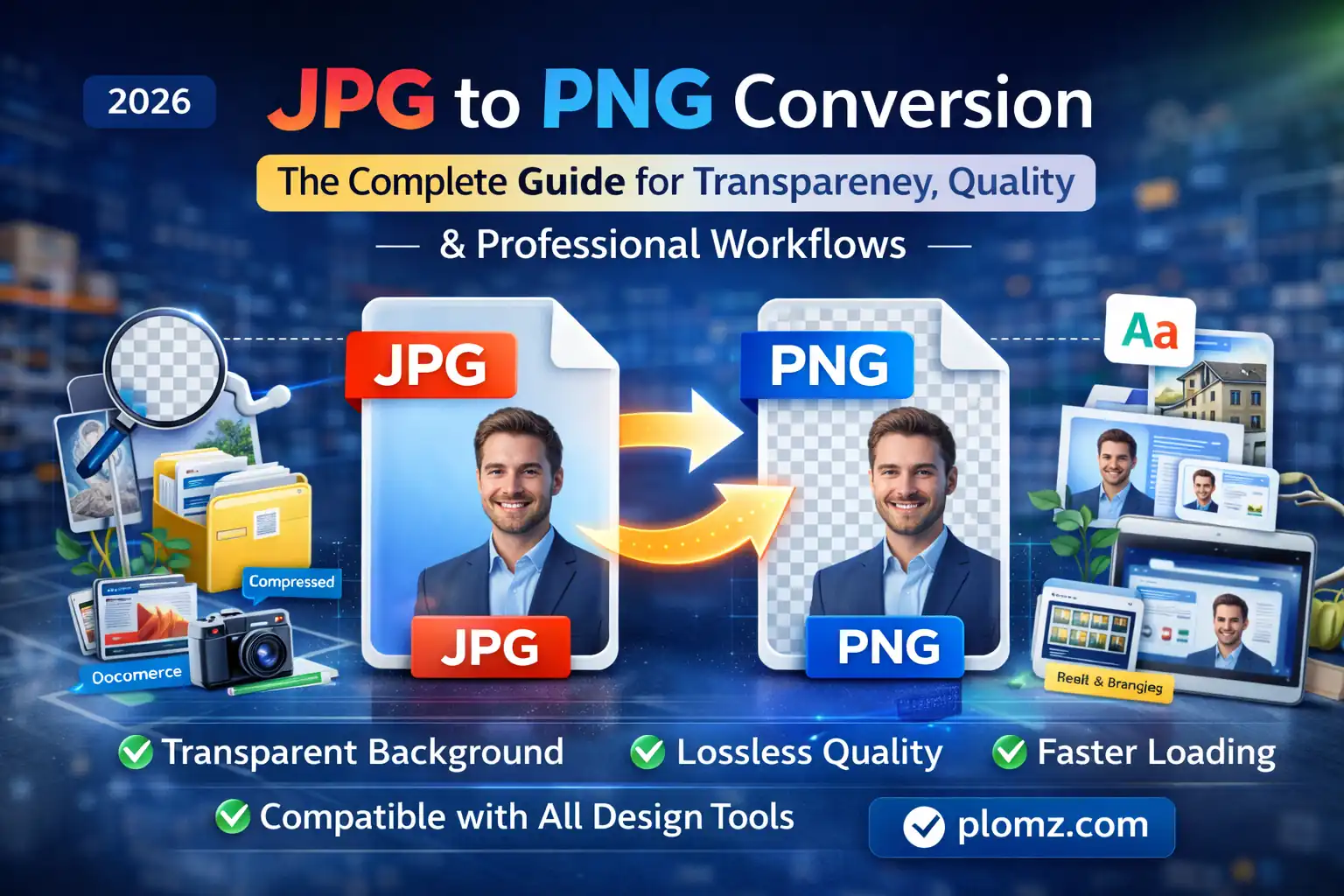
Learn how to convert JPG to PNG for transparent backgrounds, design, ecommerce, and web use. Step-by-step guide with optimization and real-world workflows.
JPG is the most common image format for photography and web delivery, but it has a major limitation — it does not support transparency and uses lossy compression. PNG solves both problems by preserving detail and allowing transparent backgrounds.
That is why professionals frequently need to:
- Convert JPG to PNG
- Turn pictures into PNG for design
- Create transparent backgrounds
- Prepare images for editing and layered workflows
You can complete the process instantly using: https://plomz.com/jpg-to-png
This conversion is essential for design systems, ecommerce assets, digital marketing, and modern SaaS content pipelines.
JPG vs PNG: The Real Technical Difference
JPG
- Lossy compression
- Small file size
- No transparency support
- Ideal for photos and delivery
PNG
- Lossless quality
- Supports transparency
- Better for editing and graphics
- Perfect for layered compositions
PNG is not just another format — it is the working format for visual production.
The Most Important Use Case: Transparent Backgrounds
One of the biggest search intents behind “convert JPG to PNG” is transparency.
However, simply converting formats does not create transparency. The workflow is:
- Convert JPG to PNG using https://plomz.com/jpg-to-png
- Remove the background using the appropriate background tool
- Download the final transparent PNG
This process is used for:
- Ecommerce product cut-outs
- YouTube thumbnails
- Logo placement
- Ad creatives
- Profile images
Transparent PNG assets can be reused across hundreds of designs.
Graphic Design & Creative Workflows
Design tools perform best with PNG because it:
- Preserves sharp edges
- Handles text overlays cleanly
- Supports layer-based editing
A common real-world workflow:
Photo (JPG) → Convert using https://plomz.com/jpg-to-png → Edit → Export for web
This keeps maximum quality during production.
Ecommerce Product Image Preparation
Online marketplaces often require:
- Clean edges
- Consistent backgrounds
- High clarity
Converting to PNG allows:
- Background removal
- Shadow refinement
- High-quality cropping
After editing, the image can be resized using the correct tool at https://plomz.com/ to meet platform dimensions.
Logos, Icons & Branding
Logos must be stored in PNG format for:
- Transparent website headers
- Watermarks
- App interfaces
- Digital documents
Many logos are received as JPG files from clients. Converting them using https://plomz.com/jpg-to-png is the first step toward a professional brand asset.
Social Media Content Creation
Content creators convert JPG to PNG to:
- Build reusable cut-outs
- Create layered visuals
- Maintain consistent branding
This is especially useful for:
- Instagram carousels
- YouTube thumbnails
- Course materials
Documents, Presentations & eLearning
Many visuals extracted from reports or slides start as JPG.
Professional workflow:
PDF → Convert using https://plomz.com/pdf-to-jpg → Convert to PNG → Edit → Place in presentation
PNG ensures:
- Sharp text rendering
- Clean scaling
- Transparent overlays
Step-by-Step: How to Convert JPG to PNG
1. Upload Your Image
Go to: https://plomz.com/jpg-to-png
The tool processes the image instantly.
2. Download the Lossless PNG
You now have:
- A high-quality working file
- An editable format
- Transparency-ready output
3. Resize for Your Platform
PNG files are larger, so resizing is often necessary.
Use the appropriate tool at: https://plomz.com/
This ensures:
- Faster loading
- Correct layout fit
- Platform compliance
Batch Conversion for High-Volume Workflows
Bulk JPG to PNG conversion is essential for:
- Agencies handling client assets
- Ecommerce catalog editing
- SaaS media systems
- Educational content production
Standard pipeline:
- Convert using https://plomz.com/jpg-to-png
- Perform background removal if needed
- Resize and optimize using the correct tool at https://plomz.com/
- Deploy to production
This saves hours of manual work.
Common Mistakes to Avoid
- Expecting transparency without background removal
- Using PNG for delivery when JPG would be smaller
- Editing original JPG instead of converting first
- Uploading oversized PNG files without resizing
Performance & Quality Strategy
Professional teams use both formats strategically:
JPG → For capture and delivery PNG → For editing and asset creation
This hybrid workflow:
- Preserves quality
- Improves performance
- Reduces production time
Real-World Production Insight
In scalable content systems, every image passes through a structured pipeline. Converting JPG to PNG early allows teams to create reusable transparent assets that can be deployed across landing pages, ads, and applications without repeating the editing process.
For document-based visuals, starting with https://plomz.com/pdf-to-jpg keeps the workflow consistent and automation-friendly.
Final Thoughts
JPG to PNG conversion is not just a format change — it is the foundation of professional image editing, transparent branding, and reusable visual systems.
To instantly create a high-quality, transparency-ready image, use: https://plomz.com/jpg-to-png
Then finalize your asset with resizing or further optimization using the appropriate tools at: https://plomz.com/
This structured workflow ensures your images are ready for design, ecommerce, marketing, and scalable digital publishing.
By P. Bissiwu @2026